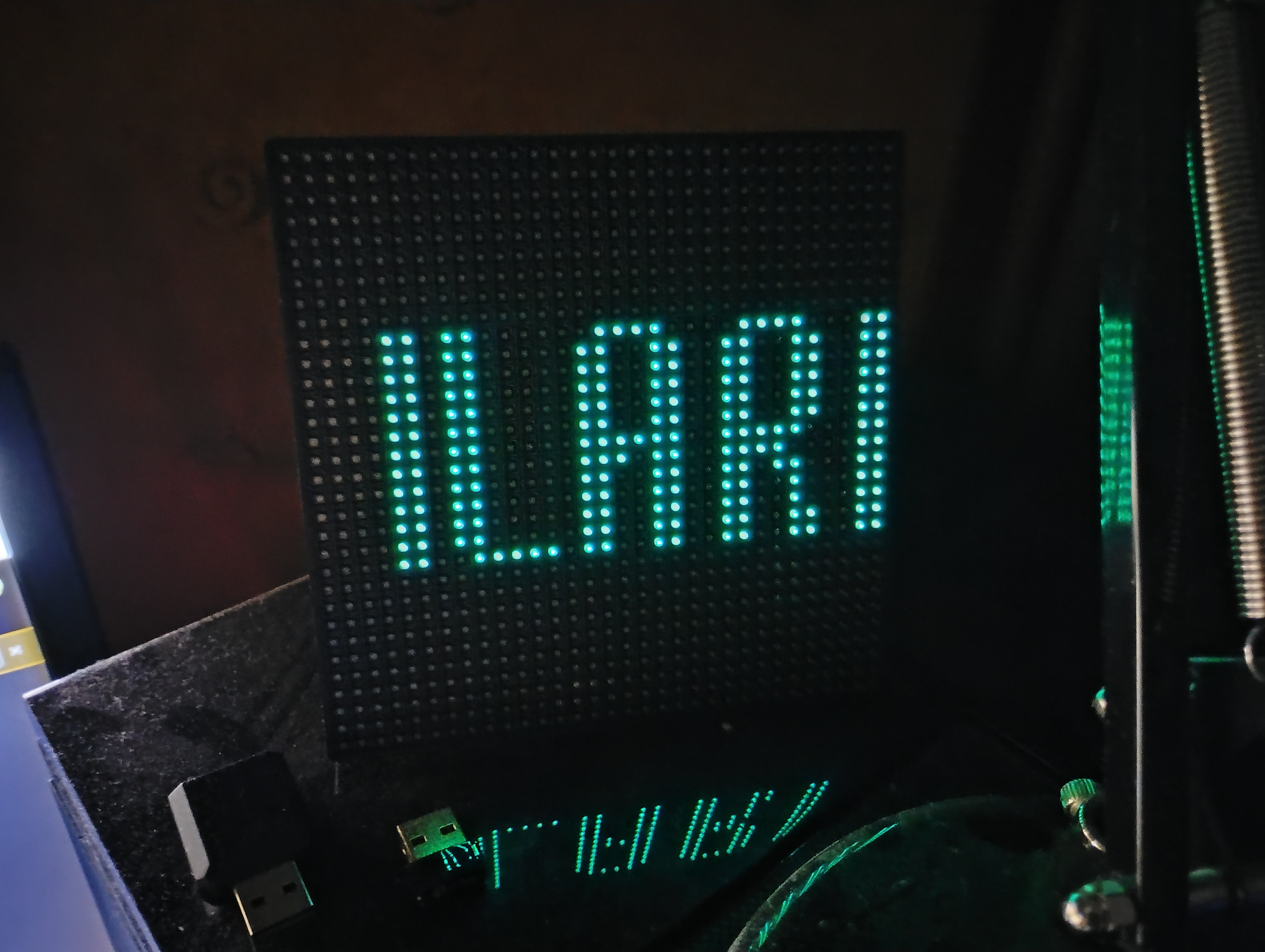
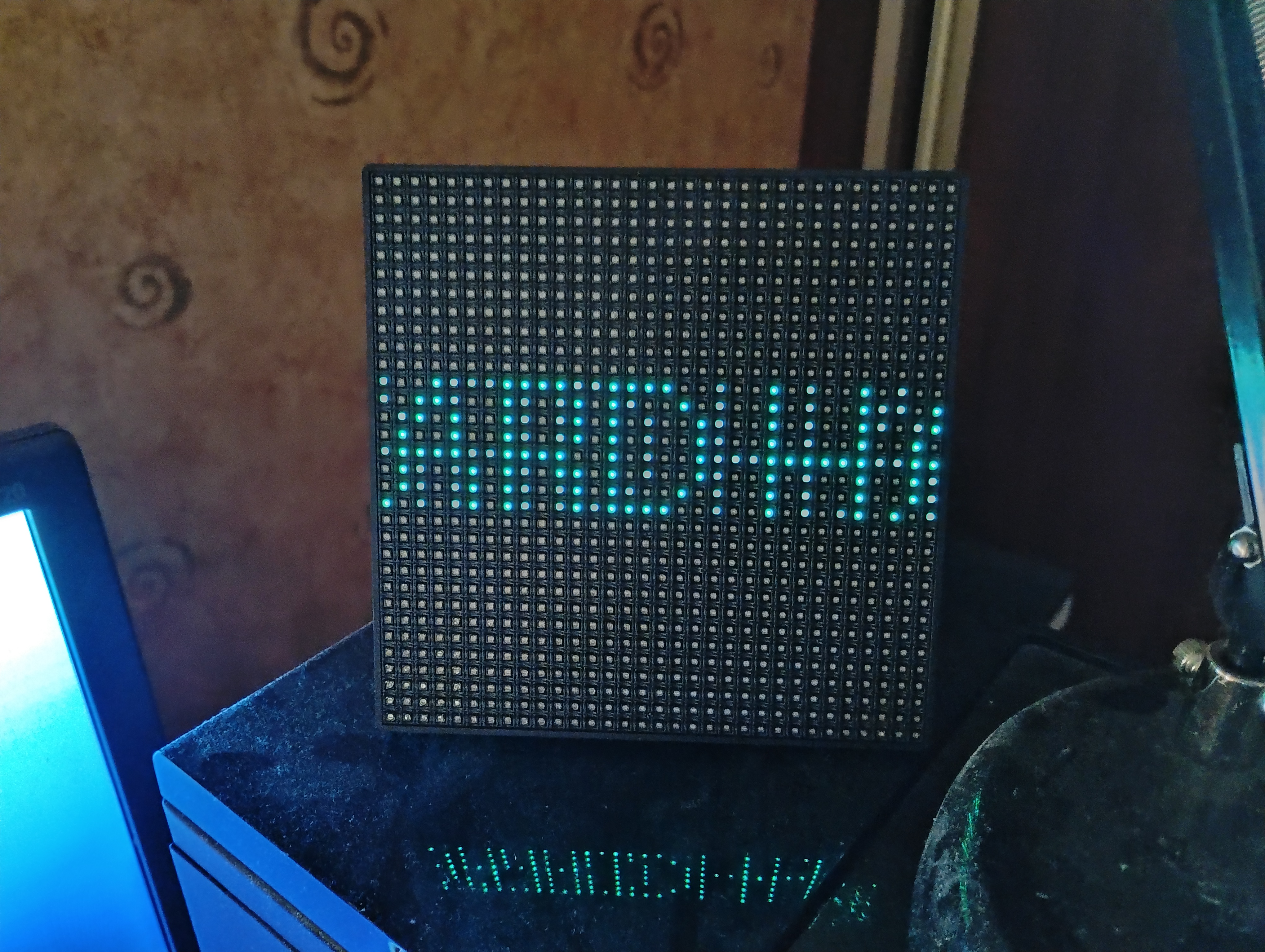
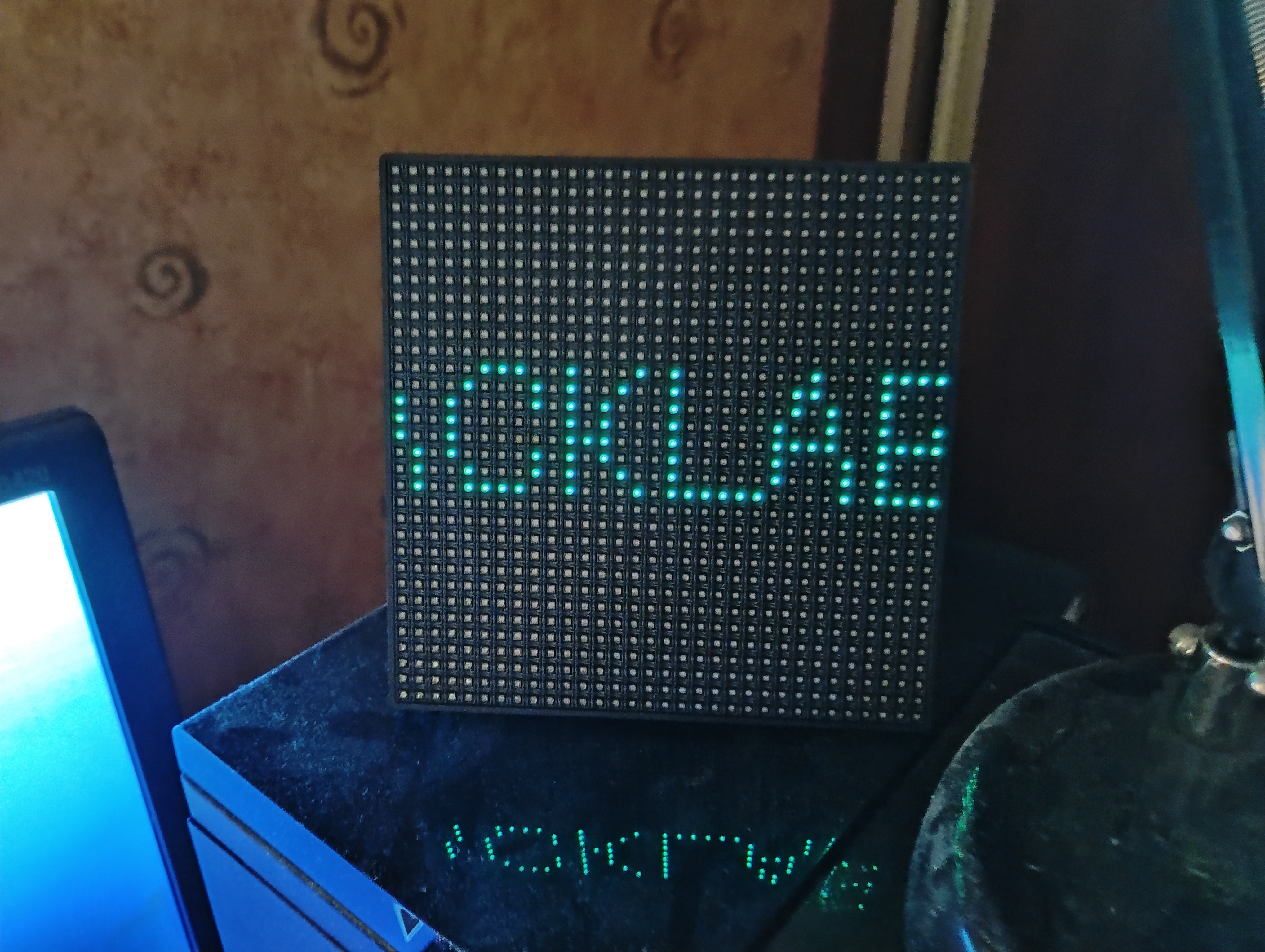
Installation du panneau de LED : BK-Light ACT1026 32×32 RGB LED matrix over BLE
Distribution de travail : Lubuntu 24.04
Matériels :
- Panneau de LED : BK-Light ACT1026 32×32 RGB LED matrix over Bluetooth Low Energy
https://www.action.com/fr-fr/p/3217439/panneau-pixel-led/ - Vieille clé usb Bluetooth Note : Je ne suis pas arrivé à faire reconnaitre une clé USB Bluetooth 5.4/6.0 sous Lubuntu
I/ Configuration du Bluetooth.
1/ Brancher la clé usb Bluetooth.
2/ Vérification.
util01@station40:~$ lsusb
...
Bus 002 Device 005: ID 0a12:0001 Cambridge Silicon Radio, Ltd Bluetooth Dongle (HCI mode)
...
util01@station40:~$
3/ Vérifier l'activité du service Bluetooth.
util01@station40:~$ systemctl status bluetooth
● bluetooth.service - Bluetooth service
     Loaded: loaded (/lib/systemd/system/bluetooth.service; enabled; vendor preset: enabled)
     Active: active (running) since Sun 2026-02-22 08:04:50 CET; 7min ago
       Docs: man:bluetoothd(8)
   Main PID: 1013 (bluetoothd)
     Status: "Running"
      Tasks: 1 (limit: 9366)
     Memory: 2.1M
        CPU: 103ms
     CGroup: /system.slice/bluetooth.service
             └─1013 /usr/lib/bluetooth/bluetoothd

févr. 22 08:07:10 station40 bluetoothd[1013]: Endpoint registered: sender=:1.65 path=/MediaEndpoint/A2DPSink/aptx
févr. 22 08:07:10 station40 bluetoothd[1013]: Endpoint registered: sender=:1.65 path=/MediaEndpoint/A2DPSource/aptx
févr. 22 08:07:10 station40 bluetoothd[1013]: Endpoint registered: sender=:1.65 path=/MediaEndpoint/A2DPSink/sbc
févr. 22 08:07:10 station40 bluetoothd[1013]: Endpoint registered: sender=:1.65 path=/MediaEndpoint/A2DPSource/sbc
févr. 22 08:07:10 station40 bluetoothd[1013]: Endpoint registered: sender=:1.65 path=/MediaEndpoint/A2DPSink/sbc_xq_453
févr. 22 08:07:10 station40 bluetoothd[1013]: Endpoint registered: sender=:1.65 path=/MediaEndpoint/A2DPSource/sbc_xq_453
févr. 22 08:07:10 station40 bluetoothd[1013]: Endpoint registered: sender=:1.65 path=/MediaEndpoint/A2DPSink/sbc_xq_512
févr. 22 08:07:10 station40 bluetoothd[1013]: Endpoint registered: sender=:1.65 path=/MediaEndpoint/A2DPSource/sbc_xq_512
févr. 22 08:07:10 station40 bluetoothd[1013]: Endpoint registered: sender=:1.65 path=/MediaEndpoint/A2DPSink/sbc_xq_552
févr. 22 08:07:10 station40 bluetoothd[1013]: Endpoint registered: sender=:1.65 path=/MediaEndpoint/A2DPSource/sbc_xq_552
util01@station40:~$
4/ Tester le Bluetooth.
util01@station40:~$ bluetoothctl
Agent registered
[CHG] Controller 00:1A:7D:DA:71:15 Pairable: yes
[bluetooth]#
5/ Scan des matériels Bluetooth.
[bluetooth]# scan on
...
[bluetooth]# scan on
Discovery started
[CHG] Controller 00:1A:7D:DA:71:15 Discovering: yes
[CHG] Device 6F:E3:D9:1A:19:CA RSSI: -40
...
[bluetooth]#
II/ Configuration de Python3.
1/ Création du répertoire de travail.
util01@station40:~$ mkdir -p MATERIEL/LEDPIXELBOARD
util01@station40:~$ cd MATERIEL/LEDPIXELBOARD/
util01@station40:~/MATERIEL/LEDPIXELBOARD$
2/ Installation de Python3.
util01@station40:~/MATERIEL/LEDPIXELBOARD$ sudo apt install -y python3-full python3-venv3/ Vérification de la version de Python3.
util01@station40:~/MATERIEL/LEDPIXELBOARD$ python --version
Python 3.10.12
4/ Création d'un environnement Python3.
util01@station40:~/MATERIEL/LEDPIXELBOARD$ python3 -m venv .venv5/ Activation de l'environnment Python3.
util01@station40:~/MATERIEL/LEDPIXELBOARD$ source .venv/bin/activate
(.venv) util01@station40:~/MATERIEL/LEDPIXELBOARD$
6/ Mise-à-jour de PIP.
(.venv) util01@station40:~/MATERIEL/LEDPIXELBOARD$ pip install --upgrade pip
Requirement already satisfied: pip in ./.venv/lib/python3.10/site-packages (22.0.2)
Collecting pip
...
Successfully installed pip-26.0.1
(.venv) util01@station40:~/MATERIEL/LEDPIXELBOARD$
7/ Installation des librairies de développement.
(.venv) util01@station40:~/MATERIEL/LEDPIXELBOARD$ pip install bleak Pillow PyYAML
Collecting bleak
...
Installing collected packages: typing-extensions, PyYAML, Pillow, dbus-fast, async-timeout, bleak
Successfully installed Pillow-12.1.1 PyYAML-6.0.3 async-timeout-5.0.1 bleak-2.1.1 dbus-fast-4.0.0 typing-extensions-4.15.0
(.venv) util01@station40:~/MATERIEL/LEDPIXELBOARD$
III/ Installation du panneau de LED.
1/ Cloner le dépôt git de l'application de gestion du panneau de LED.
(.venv) util01@station40:~/MATERIEL/LEDPIXELBOARD$ git clone https://github.com/Pupariaa/Bk-Light-AppBypass2/ Indiquer l'adresse MAC du panneau de LED trouvé en I/ 5/.
Ouvrir :
config.yamlChercher :
device:
  address: "
Remplacer par :
device:
  address: "6F:E3:D9:1A:19:CA"
Chercher :
panels:
  list: ["
Remplacer par :
panels:
  list: ["6F:E3:D9:1A:19:CA"]
2/ Renommer le nom du fichier de la police TrueType 'Aldo PC'.
(.venv) util01@station40:~/MATERIEL/LEDPIXELBOARD/Bk-Light-AppBypass$ mv assets/fonts/Aldo\ PC.ttf assets/fonts/aldopc.ttf3/ Identification du panneau de LED.
(.venv) util01@station40:~/MATERIEL/LEDPIXELBOARD/Bk-Light-AppBypass$ python scripts/identify_panels.py
[1] panel_1 @ 6F:E3:D9:1A:19:CA (grid 0, 0)
Press Enter to continue...
(.venv) util01@station40:~/MATERIEL/LEDPIXELBOARD/Bk-Light-AppBypass$
4/ Lancer le script d'affichage de texte.
(.venv) util01@station40:~/MATERIEL/LEDPIXELBOARD/Bk-Light-AppBypass$ python scripts/display_text.py "ILARD HACKLAB" --preset marquee_left5/ Photos.