Installation et test du Raspberry Pi Pico.
Liens : https://www.framboise314.fr/utiliser-le-raspberry-pi-pico-avec-thonny/ https://github.com/raspberrypi/thonny-pico https://thonny.org/ Distribution de travail : Lubuntu 18.04 Micrologigiciel : pico_micropython_20210121.uf2 Flashage du micro-logiciel : https://www.raspberrypi.org/documentation/pico/getting-started/#getting-started-with-micropython
1/ Brancher le Raspberry Pi Pico sur l'ordinateur via un câble USB.
2/ Modification de permission pour l'utilisateur courant.
util01@station66:~/RASPICO$ sudo usermod -a -G dialout util013/ Création du répertoire de travail.
util01@station66:~$ mkdir RASPICO
util01@station66:~$ cd RASPICO/
util01@station66:~/RASPICO$
4/ Installation de l'éditeur de code Thonny.
util01@station66:~/RASPICO$ sudo apt-get install python3-tk
util01@station66:~/RASPICO$ pip3 install thonny
La version installé est : Thonny version 3.3.3 Avec cette version, l'extension 'Raspberry Pi Pico' est déjà installé : https://github.com/raspberrypi/thonny-pico/releases
5/ Lancement de Thonny.
util01@station66:~/RASPI$ thonny6/ Configuration : Sélection de l'interpréteur.
- [Run] [Select interpreter...]
- [Interpreter]
- 'Which interpreter or device should Thonny use for running your code' : MicroPython (Raspberry Pi Pico)
- 'Port' : < Try to detec port automatically>
- [OK]
7/ Vérification de la connexion.
Dans la fenêtre 'Shell' en bas :
MicroPython v1.14 on 2021-02-02; Raspberry Pi Pico with RP2040
Type "help()" for more information.
>>>
Cela indique que la connexion a été correctement effectué.
8/ Test de fonctionnalité.
Taper le code suivant dans le shell :
print('Bonjour à tous !')Le résultat est :
>>> print('Bonjour à tous !')
Bonjour à tous !
>>>
L'ordinateur dialogue maintenant avec le Raspberry Pico.
9/ Test de script.
Dans la zone de texte en haut, taper le code suivant :
from machine import Pin, Timer
led = Pin(25, Pin.OUT)
tim = Timer()
def tick(timer):
    global led
    led.toggle()
tim.init(freq=2.5, mode=Timer.PERIODIC, callback=tick)
10/ Exécution du script.
- [Run] [Run current script]
- 'Where to save to' : Raspberry Pi Pico
- 'Save to Raspberry Pi Pico' : 'File name' :  led.py
- [OK]
La Led du Raspberry Pi Pico s'allume et s'éteint alternativement :
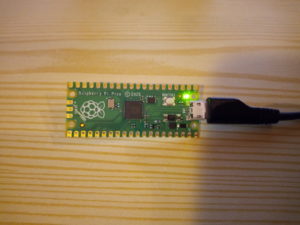 https://www.youtube.com/watch?v=yQWwr65cUzg
11/ Arrêter le script.
- [Run]
- [Stop/restart backend]
12/ Rendre automatique le lancement du script lors du branchement du Raspberry Pi Pico.
Renommer le fichier en 'main.py'.