Horloge en temps réel.
Distribution : Raspbian
Description :
Ce module horloge en temps réel basé sur le DS3231 est prévu pour fonctionner avec une carte Raspberry. Il est livré avec une pile de sauvegarde.
Fiche technique :
Fonctionne sous 3,3 ou 5 Vcc
Basé sur le DS3231
Dimensions: 14 x 14 x 13 mm
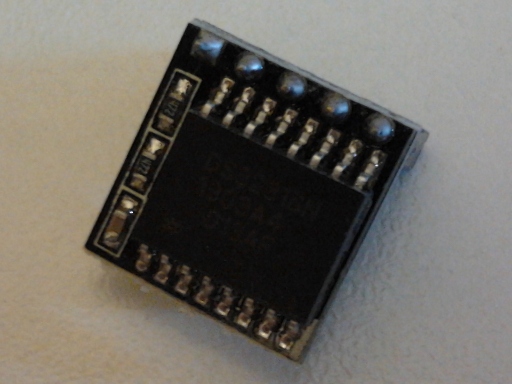
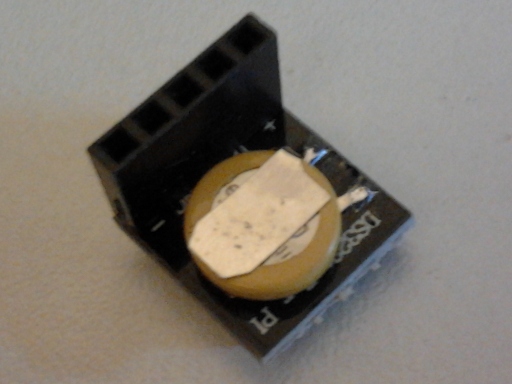 1) Monter l'horloge temps-réel sur le Raspberry Pi :

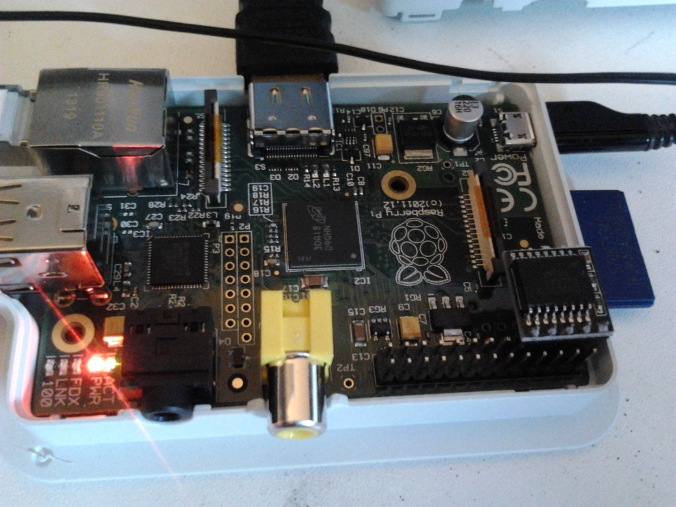
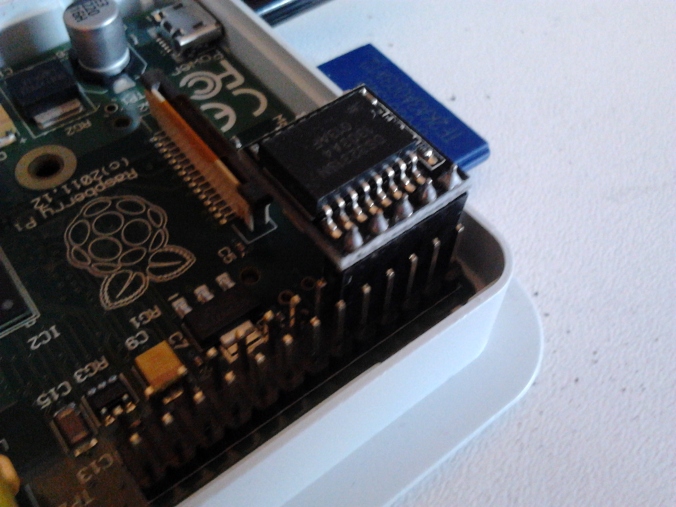
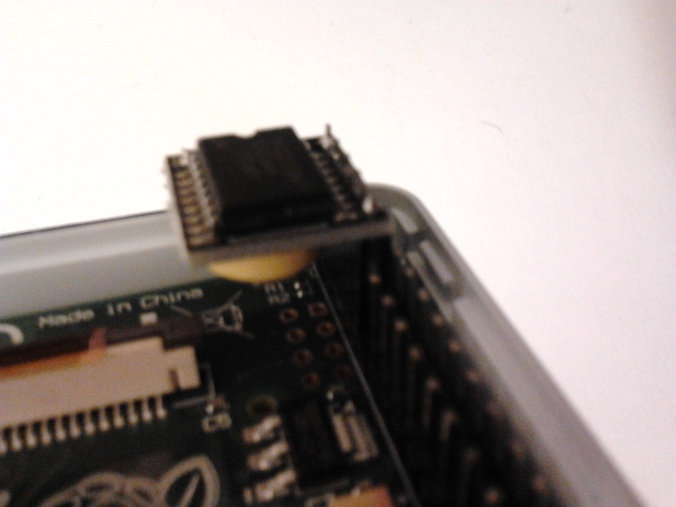 2) Configuration de i2c :
Ouvrir :
2) Configuration de i2c :
Ouvrir :
/etc/modulesAjouter à la fin :
i2c-bcm2708
i2c-dev
rtc-ds1307
3) Installation des outils i2c :
pi@framboisepi ~ $ sudo apt-get install python-smbus
pi@framboisepi ~ $ sudo apt-get install i2c-tools
4) Post-configuration : Ouvir :
/etc/modprobe.d/raspi-blacklist.confChercher :
blacklist spi-bcm2708
blacklist i2c-bcm2708
Remplacer par :
#blacklist spi-bcm2708
#blacklist i2c-bcm2708
6) Redémarrer le Raspberry Pi. 7) Détection de l'horloge :
pi@framboisepi ~ $ sudo i2cdetect -y 1
     0  1  2  3  4  5  6  7  8  9  a  b  c  d  e  f
00:          -- -- -- -- -- -- -- -- -- -- -- -- --
10: -- -- -- -- -- -- -- -- -- -- -- -- -- -- -- --
20: -- -- -- -- -- -- -- -- -- -- -- -- -- -- -- --
30: -- -- -- -- -- -- -- -- -- -- -- UU -- -- -- --
40: -- -- -- -- -- -- -- -- -- -- -- -- -- -- -- --
50: -- -- -- -- -- -- -- -- -- -- -- -- -- -- -- --
60: -- -- -- -- -- -- -- -- 68 -- -- -- -- -- -- --
70: -- -- -- -- -- -- -- --
8) Ajouter le module Dallas RTC :
pi@framboisepi ~ $ echo ds1307 0x68 | sudo tee /sys/class/i2c-adapter/i2c-1/new_device
ds1307 0x68
9) Test de l'horloge matériel :
pi@framboisepi ~ $ sudo hwclock
sam. 01 janv. 2000 01:36:06 CET  -0.363462 seconds
10) Ajouter le module RTC au démarrage :
pi@framboisepi ~ $ sudo sed -i 's#^exit 0$#echo ds1307 0x68 > /sys/class/i2c-adapter/i2c-1/new_device#' /etc/rc.local
pi@framboisepi ~ $ echo exit 0 | sudo tee -a /etc/rc.local
exit 0- Ajouter avant "exit 0" :
sudo hwclock -sL'horloge système est paramétré à partir de l'horloge matériel
- Vérification :
pi@framboisepi ~ $ cat /etc/rc.local
...
# Print the IP address
_IP=$(hostname -I) || true
if [ "$_IP" ]; then
  printf "My IP address is %s\n" "$_IP"
fi
echo ds1307 0x68 > /sys/class/i2c-adapter/i2c-1/new_device
sudo hwclock -s
exit 0
11) Vérifier la date :
pi@framboisepi ~ $ date
vendredi 25 avril 2014, 19:59:08 (UTC+0200)
Par défaut, la date est récupéré à partir du service NTP. 12) Ecrire la date système dans le module RTC :
pi@framboisepi ~ $ sudo hwclock -w13) Lire la date depuis le module RTC :
pi@framboisepi ~ $ sudo hwclock -r14) Suppression de "fake-hwclock" :
pi@framboisepi ~ $ sudo apt-get remove fake-hwclock
pi@framboisepi ~ $ sudo rm /etc/cron.hourly/fake-hwclock
pi@framboisepi ~ $ sudo update-rc.d -f fake-hwclock remove
update-rc.d: using dependency based boot sequencing
pi@framboisepi ~ $ sudo rm /etc/init.d/fake-hwclock
pi@framboisepi ~ $ sudo update-rc.d hwclock.sh enable
update-rc.d: using dependency based boot sequencing
15) Test :
- Avant :
pi@framboisepi ~ $ date
vendredi 25 avril 2014, 20:14:21 (UTC+0200)
Arrêter le Raspberry Pi pendant quelques minutes. Débrancher le câble réseau.
- Après :
pi@framboisepi ~ $ date
vendredi 25 avril 2014, 20:22:49 (UTC+0200)
L'horloge matériel fonctionne. 16) Liens : http://www.gotronic.fr/art-horloge-en-temps-reel-21258.htm http://www.seeedstudio.com/depot/Mini-RTC-Module-p-1702.html?cPath=6_111 https://learn.adafruit.com/adding-a-real-time-clock-to-raspberry-pi?view=all http://lapantech.com/Modul-RTC-DS3231-for-Raspberry-Pi-Arduino http://www.funuav.com/2013/03/raspberry-pi-with-rtc.html http://blog.remibergsma.com/2013/05/08/adding-a-hardware-clock-rtc-to-the-raspberry-pi/